
Xero Tracking Categories for Dance, Yoga and Pilates Studios
! Dance studio owner configuring tracking categories
Tracking categories let you tag every Xero invoice, bill and bank transaction with a label such as a location, a class type or a room.
Ever found yourself staring at your studio's overall profit and loss, wondering if that buzzing Monday reformer class is actually pulling its weight, or if your kids' ballet program is truly thriving after all expenses? You're not alone. The daily whirlwind of bookings, payments, and payroll can obscure the crucial financial insights you need to grow your wellness or fitness business here in Australia.
This isn't about guesswork. It's about knowing your numbers, down to the last dollar earned by a specific service, location, or even a particular room. That's where Xero Tracking Categories come in - a powerful, yet often underutilised, tool that can transform your understanding of what truly drives your Australian studio's profitability and streamline your BAS reporting.

At its core, a tracking category lets you tag every Xero invoice, bill, and bank transaction with a specific label - think "Yoga Studio Brunswick" or "Pilates Private Sessions." Then, you can run a Profit and Loss report for just that label. For Australian studio owners navigating GST, varied service offerings, and multiple locations, this granular insight is gold. It's the difference between seeing a healthy bank balance and knowing exactly where that health originates.
What Are Xero Tracking Categories & Why Your Australian Studio Needs Them
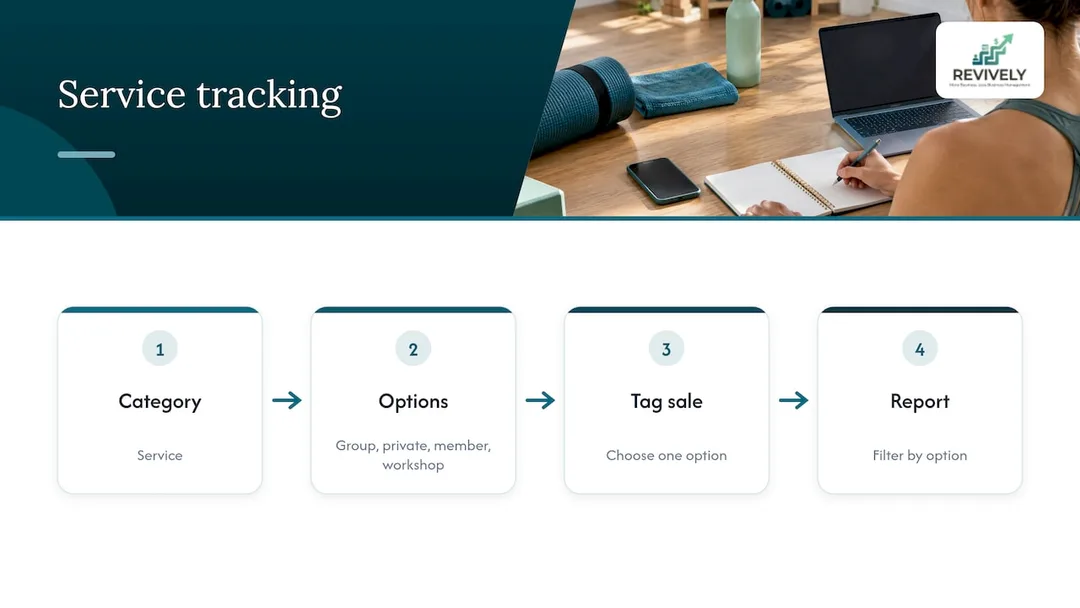
Think of tracking categories as highly organised folders for your financial data within Xero. Instead of a single, sprawling income account for "Class Revenue," you can apply a category like "Service Type" with options such as "Group Classes," "Private Sessions," "Memberships," and "Workshops."
This allows you to:
- Pinpoint Profitability: Identify which services, programs, or even specific locations are your biggest earners, and which might be bleeding cash.
- Optimise Operations: Make data-driven decisions on scheduling, staffing, and marketing spend. If your "Recovery Centre" category shows booming profits, you know where to invest.
- Simplify BAS & Tax Planning: By segmenting your income and expenses, you gain a clearer picture for your quarterly Business Activity Statements (BAS) and annual tax returns, making compliance smoother.
- Maintain a Clean Chart of Accounts: Instead of creating dozens of individual income and expense accounts (e.g., "Yoga Income - Brunswick," "Yoga Income - Fitzroy"), you keep your Chart of Accounts lean and use tracking categories to slice and dice the data.
An Australian accountant will tell you: the most effective tracking isn't about just using the feature because it's there. It's about planning around management reporting. Start with the critical questions you need answered - "Which location is performing best?" or "Is our teacher training program truly profitable?" - and then build your categories to deliver those answers.
The Two-Category Tightrope: Choosing Wisely for Your Studio
Xero offers a powerful feature, but with a catch: you're limited to two active tracking categories at any given time. This means prioritising the two most vital questions you need answered to drive your studio forward. Choose these carefully.
Here's a common approach for Australian wellness and fitness studios:
| Studio Type | Category 1 (Revenue & Cost Split) | Category 2 (Further Granularity) |
|---|---|---|
| Dance Studio (single site) | Service: Kids Classes, Adult Classes, Private Lessons, Studio Hire, Events | Style/Program: Ballet, Jazz, Hip Hop, Contemporary |
| Yoga/Pilates Studio | Service: Group Classes, Reformer, Private Sessions, Teacher Training | Location or Room (if multi-room/site): Studio 1, Studio 2, Online, Fitzroy, Brunswick |
| Day Spa/Recovery Centre | Service: Treatments, Packages, Retail, Gift Vouchers | Location (if multi-site): City Centre, Coastal Retreat |
| Multi-Site Wellness Brand | Location: Brunswick, Prahran, Online | Service: Classes, Privates, Retail |
For Australian fitness bookkeepers, a recommended strategy often involves separating individual sessions, small-group training, classes, and online programs as distinct reporting dimensions. This logic is perfectly applicable to any studio offering a mix of timetabled classes and one-on-one work.
If you're managing multiple locations, diving into a guide on multi-location reporting for wellness brands can offer even more dimensions to consider beyond Xero's two-category limit for broader business insights.
Keep Your Options Lean for Reliable Reporting
The temptation might be to create a vast, detailed list of options. Resist it. A concise list that your staff (or booking software) applies consistently every single time is infinitely more valuable than a sprawling, intricate list that leads to inconsistent tagging. As Elephant Advisory wisely points out, simple options give more reliable reports. Ten distinct dance styles, correctly tagged, are fantastic. Forty "teacher-by-style-by-day" options? That's a recipe for chaos and meaningless reports.
Setting Up Your Xero Tracking Categories (The Nitty-Gritty)
Ready to get started? The process within Xero is straightforward:
- In Xero, click on your organisation name at the top left.
- Go to Settings, then Advanced Settings, and finally Tracking Categories. (Note: Xero's menu structure can occasionally shift, so if you don't find it immediately, look for "Tracking categories" under "Advanced.") For a visual walkthrough, Growthwise offers a helpful guide.
- Click Add Tracking Category.
- Name the category clearly, e.g., "Service Type" or "Location."
- Add your options under that category, e.g., "Group Classes," "Private Sessions," "Retail" for "Service Type."
- Click Save.
Remember, a category needs at least one option before you can assign it to a transaction. It's always best to set these up before you start entering a lot of transactions. Anything entered beforehand will remain untagged unless you manually go back and edit it - a task no busy studio owner has time for!
The Two-Category Limit: Plan Around It
As mentioned, Xero allows you to have two active tracking categories. While Xero technically holds four categories in total, only two can be active at any given moment. Archiving a category frees up a slot, but it doesn't mean you can tag with three categories at once. This non-negotiable limit underscores the importance of thoughtful planning from the outset. Choose wisely before you commit!
Tagging Transactions Like a Pro: Ensuring BAS-Ready Data
Once your categories are set up, they'll appear as additional columns on invoice lines, bills, and spend or receive money entries. You can apply tracking during bank reconciliation, when creating bills, and on invoices.
Consistent tagging is key for accurate reporting and, crucially, for audit-proof BAS submissions. Here are some habits that will keep your tags reliable:
- Tag income by what was actually sold. A 10-class pack for group sessions goes under "Group Classes." A one-on-one reformer booking goes under "Private Sessions."
- Tag costs by the site or service that incurred them. The rent for your Fitzroy studio gets tagged to "Fitzroy." The uniform order for your yoga instructors gets tagged to "Group Classes" (if that's where they teach).
- Split shared bills line by line. If a supplier invoice covers materials for both your Brunswick and Prahran locations, assign its individual lines to the relevant locations. General overheads that genuinely serve the whole business can sit under a "Shared" or "Admin" option.
- Double-check every bill line when a supplier invoice covers multiple venues or services. This ensures each site or service only carries the costs it truly incurred, preventing skewed profitability reports.
The real magic happens when your booking software pushes seamlessly into Xero. For tracking categories to work perfectly, the tracking names and options in your booking system need to mirror what you've set up in Xero. A mismatch means untagged lines in Xero, leading to incomplete reports and more manual cleanup. Our guide on why Australian studios need Xero integration that actually works delves deeper into this essential setup.
Deciphering Your Dollars: Reading Tracking Reports
So, you've diligently tagged your transactions. Now, for the payoff: understanding your studio's performance.
The Tracking Summary report is your quickest check. In Xero, head to Reporting, then All Reports, and select Tracking Summary. Choose your date range, account types, and your desired tracking category, then click Update. This report reveals activity, opening and closing balances, and net movement for each option. Anything you forgot to tag will appear as "Unassigned." You can customise, save, publish, or export this report to a PDF or spreadsheet for further analysis.
A Profit and Loss report filtered by one tracking option will show you only the transactions allocated to it. This allows you to directly compare performance across regions, service types, or specific segments of your studio.
Keep these two crucial cautions in mind when reviewing your reports:
- A large "Unassigned" figure is a red flag. It means your tagging has slipped. Address this immediately before drawing any conclusions, as untagged transactions skew your data.
- Xero only shows options that had activity in the report's date range. If an option is missing from the list, it means no activity was reported, not necessarily a zero line. Double-check that a quiet option isn't simply being untagged instead of having genuinely no activity.
Review your tracked Profit and Loss monthly. A regular look catches mis-tags while the transaction is still fresh in your memory, making corrections much easier. Elephant Advisory recommends a monthly review for precisely this reason.
Reconcile Against Your Booking Reports for BAS Accuracy
Tracked reports are only as reliable as the data feeding them. Bank deposits from payment providers like Stripe often bundle several class packs, memberships, casual visits, and fees into a single payout. For flawless BAS reporting and financial accuracy, Australian fitness bookkeepers strongly recommend reconciling Xero to your booking and payment-app payout reports. Additionally, cross-check your bank and card balances monthly against statements. Our piece on mapping checks for Xero invoices offers practical steps to confirm that synced invoices from your booking platform truly align with your Xero entries.
Accurate tracking also pays dividends when it comes to instructor pay. Our post on instructor payout reports details what to include and how to cross-reference it with Xero for precision.
Revively's Edge: Unified Data, Flawless Xero, Australian Compliance
Most Australian studio owners we talk to don't have a tracking problem. They have a fragmentation problem. Bookings sit in one tool, memberships in another, payments in a third, and Xero receives a lump-sum deposit that nobody can easily split by class type or location.
This chaotic reality makes accurate Xero tracking categories, GST calculation, and BAS compliance an absolute nightmare. That's why we built Revively: to be an Australian-made, unified cloud command centre where the client, the booking, the membership, and the payment all live on one dashboard.
Here's Revively's commitment to Australian studio owners:
- Australian Data Residency & Privacy: All client data, booking histories, and sensitive health intake forms are stored securely locally in Australia, in full compliance with the strict Australian Privacy Principles (APPs).
- Flawless GST & Tax Invoice Handling: Our system natively handles 10% GST calculations across casual classes, memberships, and multi-resource packages. Revively automatically issues legally compliant Australian Tax Invoices to your clients, every time.
- 100% Legal Xero Integration for BAS Accuracy: Our two-way, automated Xero integration is designed specifically for Australian studios. It flawlessly maps tax codes, revenue accounts, and liabilities directly to Xero. This means your quarterly Business Activity Statements (BAS) are accurate, audit-proof, and free from the manual spreadsheet errors that often lead to headaches and compliance issues.
When your booking system already knows whether a sale was a class pack, a rolling membership, or a treatment, your Xero tracking categories have something solid and clean to mirror.
Our advice: Choose your two categories carefully, name them identically in both Revively and Xero, and review your reports monthly. Clean data in always beats clever reports out.
Andreea, Founder of Revively
Revively seamlessly connects your timetable, memberships, class packs, and Stripe payments directly to Xero. This means you spend less time manually rebuilding sales data and more time focusing on what you do best: growing your studio.
Plans start at just $39 per month for Solo, $99 per month for Growth, and $199 per month for Pro, with a free trial available. See the Revively pricing page for what each plan includes.
If you sell recurring memberships, our guide to Stripe membership billing for Australian studios explains how payments flow through our system for ultimate clarity. Find more valuable insights on our dedicated Xero integration blog tag.
Frequently Asked Questions (FAQ)
What are tracking categories in Xero?
Xero tracking categories are labels you attach to your financial transactions (like sales and expenses) to segment your data. This allows you to generate reports, such as a Profit and Loss, for specific parts of your business - for example, by location, service type, or department. Each category, like "Location," has options, such as "Brunswick" and "Fitzroy."
How do I add tracking categories in Xero?
To add a tracking category, navigate to your organisation name in Xero, then go to Settings > Advanced Settings > Tracking Categories. Click "Add Tracking Category," give it a name, add at least one option (e.g., "Group Classes" for a "Service Type" category), and save it. Once set up, the category will appear as a column on invoices, bills, and other transactions.
How many tracking categories does Xero allow?
Xero allows for two active tracking categories at any given time. While Xero can store up to four in total, only two can be used for tagging transactions. If you need to switch, you'll need to archive one active category to make room for another.
Which tracking categories should an Australian dance studio use?
For an Australian dance studio, a common and effective pair of tracking categories is Service (with options like "Kids Classes," "Adult Classes," "Private Lessons," "Studio Hire," "Events") and Style or Program (e.g., "Ballet," "Jazz," "Hip Hop"). The best choice always aligns with the most important management questions you need answered to optimise your studio's profitability. Remember to keep option lists short and ensure consistent application across all staff and systems.
Sources
- Tracking Summary report, Xero Central
- Xero Tip: Tracking Categories, Growthwise
- Using Tracking Categories in Xero, Elephant Advisory
- How to Set Up Xero for a Small Business, M2 Corporate
- Xero bookkeeping for personal trainers, Book Keeping Pros
- Xero Tracking Categories: A Separate P&L for Each Venue, Roger Financial
- Tracking Categories Report idea thread, Xero Product Ideas
- Multi-Location Reporting for Wellness Brands
- Integrate Xero invoices: mapping checks
Recommended for Australian Studio Owners
- Drowning in Spreadsheets? Why Australian Studios Need Xero Integration That Actually Works (2026 Guide)
- Navigating the BAS Beast: Does GST Apply to Your Australian Yoga, Pilates, or Wellness Studio?
- The Essential Australian Guide to Choosing a Yoga Studio Booking System
- Studio Chaos to Calm: Choosing the Right Australian Management Software in 2026