
Data Import from Spreadsheets: A Studio Owner's Guide
! Studio owner entering client data on a laptop
You can move your client list, services and class details from Excel or Google Sheets into new studio software in an afternoon.
Remember that gut-punch feeling? The one where you're juggling client bookings, wrangling class schedules, and trying to reconcile membership payments - all while staring down a spaghetti-junction spreadsheet that seems to grow columns overnight? It's not just you. That chaotic daily reality is why so many Australian spa, yoga, Pilates, recovery centre, and dance studio owners are ready to ditch the manual grind.
The good news? Moving your precious client list, services, and class details from those clunky Excel or Google Sheets into a world-class studio management system doesn't have to be a nightmare. In fact, with the right approach and a system built for Australian businesses like Revively, you can pull it off in an afternoon.
This isn't just about moving numbers; it's about setting your studio up for compliant, stress-free growth. We'll walk through the entire process, from prepping your data to the final checks, ensuring your shift to a smarter system is smooth, accurate, and completely audit-proof for Australian standards.

Your Pre-Flight Checklist: A Smooth Data Import for Aussie Studios
Think of this as your executive summary for a seamless data migration. Nail these, and you're halfway there:
- Flatten and Strip: Your spreadsheet needs to be one single, uncluttered table with just one heading row. Lose the merged cells, the totals, the fancy colours - all of it.
- Go CSV UTF-8: Save your file in this format. It's crucial for preserving Aussie names (think Zoë, O'Brien) and ensuring special characters don't become gibberish.
- Standardise Everything: Dates, phone numbers, addresses, service names - every piece of data in a column should follow one consistent format. No exceptions.
- Clean Before You Leap: Tackle duplicates and empty cells in your spreadsheet before importing. Don't push your mess into a new system.
- Order Matters: Import clients first, then anything directly linked to them (memberships, class packs, bookings).
- Map with Precision: Take your time matching your spreadsheet columns to your new software's fields. A mobile number goes in the mobile field, not notes.
- Fix at the Source: If the import flags errors, go back to your original spreadsheet, fix it, and re-import. Don't try to patch it up within the new system.
- Verify, Verify, Verify: A success message isn't enough. Spot-check a sample of clients and test a booking to confirm everything landed correctly.
What You Can Actually Bring Across from a Spreadsheet
Most studios kick things off with their client roster, then bolt on the rest. Here's what typically transfers beautifully from a well-organised spreadsheet into an all-in-one spa booking software or wellness studio management system like Revively:
- Clients: Think name, email, mobile, date of birth, any existing notes, and crucial marketing consent preferences.
- Services & Treatments: Name, duration, price, and which room, resource, or practitioner delivers it.
- Class Types & Packs: Class name, capacity, the size of your class packs, and their pricing.
- Memberships: Client's name, the membership plan, start date, and the billing amount.
While business software, in general, accepts a wide range of records such as contacts, products, services and appointments, plus linked activities like notes and tasks, each platform is unique. For Revively, our comprehensive data import feature covers bringing across your essential information.
A savvy rule of thumb: import what you actively use every week. Five years of cancelled appointments rarely pull their weight. Your current clients, active memberships, live class packs, and your core service menu? Absolutely.
Phase 1: Spreadsheet Prep - Where the Magic (and Misery) Happens
This is where you'll invest the most time, and where most import errors originate. A clean file upfront makes the rest of the process astonishingly fast.
Build One Flat Table, No Faff
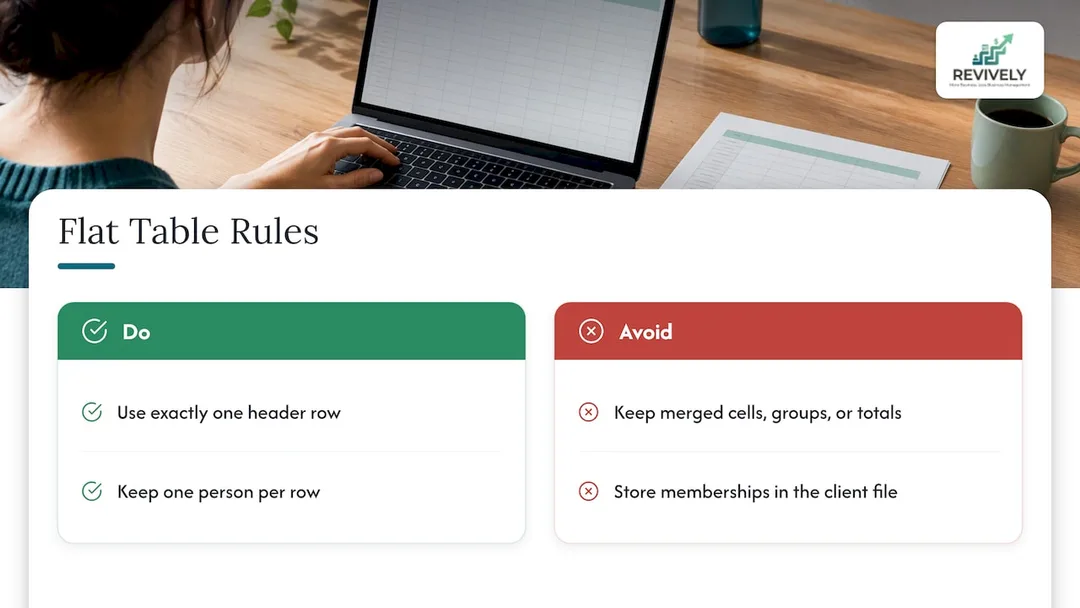
Import tools are like minimalist critics: they demand a single, flat table with exactly one header row. This means ditching merged cells, groups, totals, and subtotals. If your sheet has a fancy title banner, colour-coded sections per instructor, or a "grand total" row at the bottom, delete them.
Crucially, keep one person per row in your client file. If a client holds three memberships, they should still appear in one row in your client spreadsheet, with memberships being handled in a separate, linked sheet during the import process.
The Sacred CSV UTF-8 Rule
For Australian business software, the standard advice is to use a CSV with a heading row and save it as CSV UTF-8. Why UTF-8? Because it's a lifesaver for preserving accents, apostrophes, and other special characters common in names like Zoë or O'Brien. In Excel, navigate to Save As, then choose CSV UTF-8 (Comma delimited).
Standardise Your Values (No Exceptions!)
This is non-negotiable. Scrutinise each column to ensure every single entry follows one consistent format.
| Column | The Right Way (for Australia) | The Wrong Way (causes headaches) |
|---|---|---|
| Mobile | Australian numbers only, digits (e.g., 0412345678) |
Spaces, brackets, country codes (e.g., +61 (0)412 345 678), missing leading zero |
| Date of Birth | Your import template's specified format (e.g., YYYY-MM-DD or DD/MM/YYYY) |
A mix of formats in one column (e.g., 1/2/90, Feb 1, 1990, 01-02-1990) |
| Address | Full street address, suburb, state, postcode (split if template asks) | Entire address in one cell if the template requires separate fields (e.g., street, suburb, state) |
| One email per cell, preferably lowercase | Two emails in one cell, inconsistent capitalisation | |
| Service Names | Identical spelling and capitalisation (e.g., Hot Stone Massage) |
Hot stone, hot stone, Hot Stone massage for the same service |
This guidance on phone numbers and dates comes straight from an Australian import guide. On naming, one platform wisely advises consistent capitalisation within a column to prevent identical values from being read as different options. This is crucial for class names and service names - you don't want "Reformer Pilates" and "reformer pilates" to magically become two separate items in your new system.
Taming Excel's Wild Habits
Excel has a mischievous habit of stripping leading zeros from mobile numbers and converting some text into dates. To outsmart it, one vendor suggests opening the CSV through the Text Import Wizard and setting those specific columns to 'Text'. Do this before you make any edits, because once that leading zero vanishes, saving the file won't magically bring it back.
Phase 2: The Great Data Clean-Up - Banish the Blanks & Beat the Duplicates
Duplicates and blank cells are the culprits behind most failed imports. A thorough cleaning guide identifies duplicate rows, inconsistent formats, missing values, and structural errors as the primary offenders. It also highlights that rows with a different number of columns than the header can catastrophically misalign the values that follow.
Work through this checklist meticulously in your spreadsheet before attempting an import:
- Sort and Merge: Sort your entire sheet by email, then by mobile. Any adjacent matches are highly likely the same person. Merge them, keeping the most recent and complete details.
- Excel's "Remove Duplicates": Use this powerful feature on the email column. BUT WAIT: Double-check carefully to ensure shared family emails (e.g., parents booking for children) aren't being inadvertently deleted.
- Filter for Blanks: Filter for empty cells in any columns your new software requires (typically name plus email or mobile). Either fill these in or remove the entire row if it's incomplete junk data.
- Abolish Placeholders: Replace any "N/A," "TBC," or dashes with a truly empty cell.
- Header Harmony: Review your header row. While "Mobile" and "Phone" can be mapped, two columns with the exact same heading will cause confusion and errors. Rename one if necessary.
If a client has neither an email nor a mobile number, pause and ask yourself: do they truly belong in your new, digitised system? Prioritise your active, contactable clients.
Phase 3: The Import Itself - Order, Mapping, and the "Aha!" Moment
Order isn't just a suggestion; it's critical. One Australian guide stresses the need to import customer records before any jobs or appointments linked to them, ensuring all those crucial links form correctly in your multi-resource studio scheduling software. For a wellness or fitness studio, this means:
- Services, Class Types, and Resources: Rooms, saunas, mats, your star teachers, specific treatment types.
- Clients: Your precious people.
- Memberships, Class Packs, and Credits: The financial heart of your studio.
- Upcoming Bookings: If you're bringing these across (often better to start fresh for future bookings).
During the import process, you'll typically see your spreadsheet column headings presented alongside your software's designated fields. In most accounting and business tools, you'll match each spreadsheet column to a field using dropdown menus. Take it slowly here. Double-check that "Mobile" maps exactly to the mobile field, not to a generic "notes" field. Ensure "Joined" maps to a membership start date, rather than a date of birth. This is where precision pays off.
Revively Pro Tip: If you want a head start, Revively's smart AI-powered onboarding can often read your existing website to automatically set up services, class types, and resources. That means you only need to import the unique client data that lives in your spreadsheets, saving you even more time.
Phase 4: Error Handling - Don't Panic, Just Patch (and Preserve!)
World-class import screens will flag problems before anything is permanently saved. For example, some tools will highlight incorrect cell values in red so you can correct them and try again. Expect these common issues:
| Problem | Likely Cause | How to Fix (The Aussie Way) |
|---|---|---|
| Column Not Recognised | Heading doesn't match the template or expected field name. | Rename the heading in your spreadsheet to match the system's field, or map it manually during the import. |
| Mobile Number Rejected | Contains spaces, country codes (+61), or lost leading zero. |
Ensure it's digits only (e.g., 0412345678). Go back to your spreadsheet and reapply leading zeros if Excel ate them. |
| Date Rejected | Mixed date formats in one column. | Reformat the entire column in your spreadsheet to one consistent format (e.g., YYYY-MM-DD). |
| Row Skipped / Incomplete Record | A required field (like Name, Email, or Mobile) is blank. | Fill in the missing information in the spreadsheet, or remove the incomplete row if it's not a viable client. |
| Duplicate Client Created | The same person appeared in your spreadsheet with different spellings or details. | Merge the duplicate records in your spreadsheet before re-importing. |
| Odd Characters in Names / Text | File not saved as CSV UTF-8. | Re-save your original spreadsheet as CSV UTF-8 (Comma delimited) to preserve accents and special characters. |
Critical rule: Always fix the source spreadsheet and re-import the corrected version. Do not patch records one by one in the new system. This ensures you maintain a clean, accurate master file that you can always refer back to.
Phase 5: The Post-Import Audit - Trust, But Verify
Never rely solely on a "Success!" message. Dedicate ten minutes to these essential checks to ensure your all-in-one spa booking software or wellness studio CRM is pristine:
- Headcount Harmony: Does the number of clients in the system exactly match the number of rows in your imported file?
- The Sample Test: Open ten random client profiles. Include one with an apostrophe in their name (O'Brien, Zoë), one with a lengthy Australian address, and one with an "active class pack or membership". Compare every detail against your original spreadsheet.
- Trial Booking: Book a class or treatment for a test client. Confirm the automated booking confirmation goes to the correct mobile and email address.
- Balance Check: Are class pack credits and membership start dates accurately reflected, matching what your clients expect?
- Twin Troubles: Search a few common Australian surnames (e.g., Smith, Brown, Jones) to catch any sneaky duplicates that might have slipped through.
Keep your original, untouched spreadsheet for at least a few months. It serves as your ultimate reference point if any anomalies surface.
The Australian Mandate: Data Privacy, GST, and Xero - Why Revively Excels Here
A spreadsheet teeming with client names, phone numbers, and sensitive health notes isn't just data - it's personal information. This is where Australian compliance becomes paramount. Always delete unnecessary copies, avoid emailing the file around, and share it only with the trusted individual performing the import. For a deeper dive into safeguarding client information when switching systems, our guide to migrating from another booking system covers it in more detail, and Revively's security and trust page meticulously explains how we handle your data.
Why Your Spreadsheet Import is a Fresh Start with Revively
Most Aussie studio owners we chat with aren't short on data. They're short on a clean, reliable starting point. That old spreadsheet? It's often grown organically for years, with a new column tacked on every time something new popped up, and frankly, nobody wants to touch it.
We see the import process as the ultimate moment to hit refresh and tidy up. Merge those duplicates, standardise those formats, and make a conscious decision about what genuinely needs to come across. This ensures your new multi-resource studio scheduling system starts accurate, setting the stage for staff to trust it implicitly from day one.
This philosophy is precisely why we engineered Revively as a unified cloud command centre. Your clients, class packs, memberships, timetable, and Xero-ready payments all sit harmoniously together. The data you import becomes the single source of truth for every aspect of your studio operations. No more re-keying the same client into three different tools.
Critically, Revively ensures Australian Data Residency & Privacy. Your client data, booking histories, and sensitive health intake forms are stored locally in Australia, fully complying with the Australian Privacy Principles (APPs).
Beyond privacy, we've baked in flawless GST & Tax Invoice Handling. Our system natively handles 10% GST calculations across casual classes, memberships, and multi-resource packages, automatically issuing legally compliant Australian Tax Invoices to your clients.
And for your accountant? Our 100% legal Xero integration guarantees tax compliance. Automated two-way mapping of tax codes, revenue accounts, and liabilities ensures your quarterly Business Activity Statements (BAS) are flawless and audit-proof, eradicating those painful manual spreadsheet errors.
Andreea, Founder of Revively
Ready to Revive Your Studio? Start with Revively.app
Revively is the Australian-made, unified cloud command centre specifically designed for spas, yoga, Pilates, recovery centres, and dance studios. Your perfectly imported clients connect directly to our intuitive multi-resource scheduler, class waitlists, dynamic memberships, and secure Stripe payments, all seamlessly integrated with Xero for GST compliance.
We're built for Australian businesses, by Australian businesses. Our plans start at just $39 per month for Solo studios, with Growth at $99 per month and Pro at $199 per month. Annual billing options are also available on our pricing page.
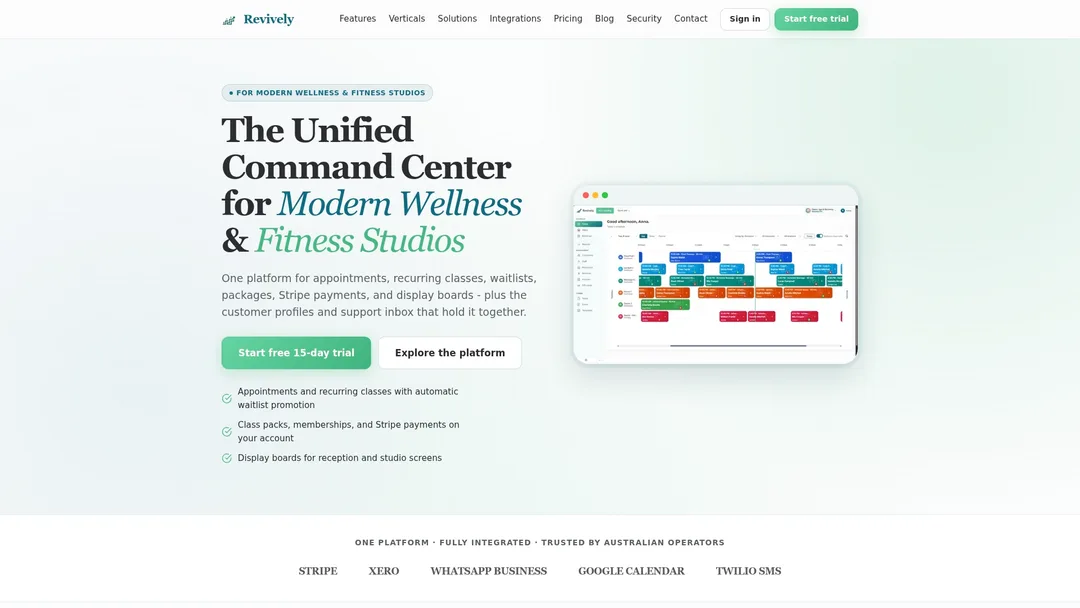
If you run group classes, discover how our intelligent recurring classes and waitlists feature works once your clients are securely in the system.
Frequently Asked Questions (FAQ)
Should I use Excel (.xlsx) or CSV for the import?
For maximum compatibility and to avoid hidden formatting or formulas, CSV is always the safest choice. While some tools might accept .xlsx, CSV UTF-8 (Comma delimited) is the gold standard, particularly for preserving special characters often found in Australian names.
How many columns do I actually need?
Only the essential ones your chosen software requires, plus any other data points you genuinely plan to use. Typically, a client's name and at least one contact method (email or mobile) are the absolute minimum. Any extra columns you don't map will simply be ignored, so don't sweat leaving some out.
Can I import upcoming bookings and class packs?
Often, yes! But the crucial step is to import your clients first. This allows each booking or pack to accurately link to the correct person. Always check the specific requirements on your new system's data import page for Revively, and don't hesitate to reach out to our support team if your data has any unusual complexities.
What if I accidentally import the wrong file or make a mess?
The beauty of a structured import process is that errors can be rectified. If things go sideways, the best approach is to fix the original spreadsheet and re-import the corrected version. This is precisely why we recommend testing with a small batch of 10-20 clients first - it's far simpler to correct a few records than your entire client list!
Sources
- Understand the import tool
- How to Prepare a Spreadsheet for Importing
- Import customers, suppliers, price book items and jobs
- Importing existing patients (CSV bulk)
- Preparing Data for Import
- How to edit CSV import files in Excel
- How to Clean CSV Data: 10 Fixes Before Importing It
- Import products and services into QuickBooks Online
Recommended for Your Studio's Success
Ready to go deeper on optimising your Australian studio's operations? Check out these essential reads:
- Ditch the Dread: A World-Class Guide to Migrating Your Australian Studio's Data Without a Meltdown
- Drowning in Spreadsheets? How Smart Studios Sell Prepaid Treatment Packages Online (The Aussie Way)
- Is Your Studio Timetable Stuck in Manual Mode? How to Import, Update, and When to Upgrade (An Australian Guide)
- Ditching Your Old Studio Software? The Aussie Migration Playbook for Zero Chaos & Total Compliance