
How to Import a Class Schedule From a Website
! Studio owner importing a weekly class timetable
You can import a class schedule from a website into Google Calendar or Apple Calendar in a few minutes, but only if the site gives you an ICS file, a CSV file or an ICS feed link.
Imagine the scene: It's 6 AM, your first client for the day just called, convinced their 7 AM Reformer class was actually 8 AM, despite what your website says. You scramble to check three different calendars, only to find the class was changed last week, and the website's public timetable, the one clients see, is a full seven days out of date.
Chaos, right? You're not alone. For many Australian wellness and fitness studio owners, managing a class schedule feels like juggling hot potatoes. You might be using a mix of your website, a shared calendar, and perhaps even a spreadsheet. When classes shift, instructors swap, or new programmes launch, keeping everything in sync can quickly become a monumental, error-prone task.
You might be thinking, "Can't I just import my timetable from my website into Google or Apple Calendar?" Yes, you can - but it's often a band-aid, not a cure. This guide cuts through the noise, showing you how to manage your timetable data, when a simple import suffices, and when it's time to embrace a unified solution built for the unique demands of an Australian studio.

A quick calendar import offers a one-off copy. But if your timetable is dynamic, frequently adjusted, or forms the very backbone of your business (which it absolutely should!), you're going to need more than a static file or a view-only feed. This is especially true for Australian studios navigating GST, Xero, BAS, and strict data privacy.
When a Quick Calendar Import Might (Briefly) Work
Sometimes, you just need a snapshot. If your website provides an ICS file, a CSV, or an ICS feed link, you can pull that data into Google Calendar or Apple Calendar.
- For a one-off copy: A downloaded file (.ics or .csv) is suitable. Think historical records, or a timetable that absolutely will not change.
- For a view-only, live feed: An ICS feed link lets you "subscribe" to a timetable that updates at the source, but you can't make any changes within your personal calendar.
Crucially, if your website offers none of these, you're stuck copying by hand. And that, my friend, is your first clear sign you've outgrown basic methods and need to look at dedicated studio software.
Choosing Your Import Path: Files vs. Feeds
The format your source website spits out dictates your options. Google's documentation clearly differentiates between importing static files and subscribing to live feeds.
| Situation | Best Method | Stays Up-to-Date? |
|---|---|---|
| Fixed-term programme or historical data | Import an ICS file once | No, it's a static copy |
| Timetable with regular changes | Subscribe to an ICS feed URL | Yes, but it's view-only |
| Data cleanup or system migration | Export as CSV, then adapt | No, requires manual re-entry |
| No export or feed option available | Rebuild in booking software | Yes, with the right tool |
The bottom line? The more you cancel, reschedule, swap rooms, or change instructors, the more you need a live feed - but even then, it's a passive view, not an active management tool. A static copy goes stale faster than a loaf of sourdough in a heatwave.
The Nitty-Gritty: Importing into Google Calendar
Google recommends using a computer for file imports, not your phone. Here's the drill for a one-off import, following Google's official steps:
- Export/Download: Grab the
.icsor.csvtimetable file from your website. - Open Google Calendar: Navigate to Settings, then Import & Export.
- Select File: Choose your downloaded file.
- Destination Calendar: Pick the calendar you want the events to go into.
- Import: Click the magic button.
Three common pitfalls to sidestep:
- Guest List Woes: Google explicitly states that guests and conference data do not transfer. So, don't rely on this for client bookings or attendance.
- Sandbox First: Always import into a new, separate calendar (e.g., "Studio Timetable"). If it's a dog's breakfast, you can delete that calendar without nuking your personal appointments.
- Test Small: Import a single week first. Verify everything before you unleash a full term's worth of classes.
When Imports Fail (And How to Fix Them)
Most import headaches stem from the source file itself. Google's format notes clarify that a valid ICS file needs BEGIN:VCALENDAR and END:VCALENDAR wrappers, with each event encased in BEGIN:VEVENT and END:VEVENT. For CSVs, you need standard English headers like "Subject," "Start Date," and "Start Time." If your website's spreadsheet uses different headers, the import will likely bomb.
Open your file in a basic text editor (for ICS) or a spreadsheet program (for CSV) and adjust those headers before attempting another import.
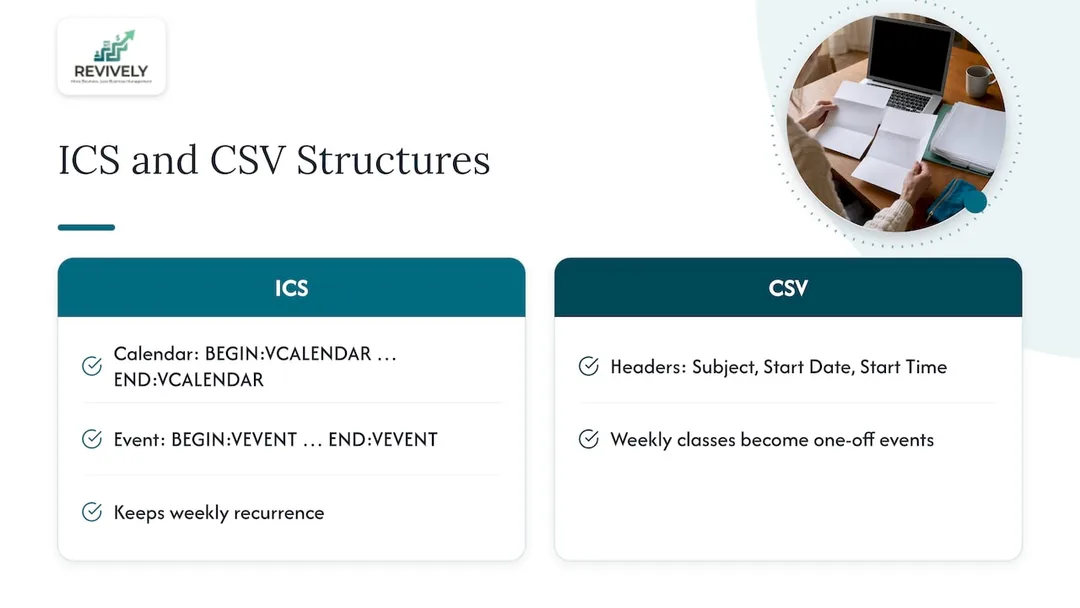
This is also why, in our experience, ICS files are superior for recurring classes. Google's guidance on CSV shows that a weekly Tuesday 6 PM class often gets flattened into a string of individual, one-off events in CSV, making future edits a nightmare. A well-formatted ICS file, however, preserves the recurrence pattern.
Subscribing to a Live Schedule with an iCal Link
If your timetable is a living, breathing entity that changes, ditch the file import. Instead, subscribe to the feed - if your website offers a public or private iCalendar URL.
In Google Calendar (on a computer): Open Settings, choose Add calendar, then From URL. Paste your iCal address and add it. The events will then mirror changes from the source.
A couple of vital warnings:
- View-Only: This is paramount. You cannot edit classes from within Google Calendar. All changes must be made at the original source.
- Treat as a Password: If your feed URL is a "secret address," guard it like your grandmother's pavlova recipe. Anyone with that link can view your entire schedule.
For Your Apple-Loving Clients and Staff
Many of your clients and team likely use Apple devices. Here's how to guide them:
- iPhone/iPad: Following Apple's subscription steps: Open Calendar, tap Calendars, then Add Calendar, then Add Subscription Calendar. Enter the .ics address, then tap Find or Subscribe.
- Mac: In the Calendar app, choose File, then New Calendar Subscription. Enter the web address, give it a name and colour, pick an account (select iCloud to sync across devices), and click OK.
Remember, these are read-only views, which is ideal for a public-facing timetable: clients can see available sessions but can't accidentally (or deliberately) alter your master schedule.
The Five-Point Pre-Publish Checklist for Australian Studios
A timetable can look right but be fundamentally flawed. Before you share that link with your eager clients, double-check these critical elements:
- Timezone: This is a big one for us in Oz. Ensure your schedule is generated in your studio's actual timezone. Australia has multiple timezones: AEST, ACST, and AWST, with differing daylight saving rules. If you serve clients across states or run recurring evening classes, meticulously check the weeks surrounding any clock changes. A simple one-hour shift can cause chaos.
- Duration: Does that 45-minute Reformer class genuinely show as 45 minutes, or has it magically become an hour?
- Recurrence: Scroll three months ahead. Do your weekly classes still land on the correct days, or has something gone awry?
- Room & Instructor Details: Are these accurate and complete? There's nothing worse than a client showing up for a class, only to find the room is double-booked or the instructor listed isn't the one teaching.
- Privacy: This is crucial. Absolutely ensure no staff-only notes, client names, or private rates have accidentally crept into the public description fields. Australian Privacy Principles (APPs) are not to be trifled with.
Why a Generic Calendar Cannot Run Your Australian Studio
A basic calendar import shows when a class runs. It has no clue who is booked in.
As Google's documentation confirms, imported events are static copies, and a feed is just a read-only window. Neither handles the intricate dance of studio operations:
- Enrolments and Capacity Limits: Your calendar won't know if a class is full, nor will it stop overbookings.
- Payments, Memberships & Class Packs: Forget tracking client credits, processing payments, or managing complex membership tiers. This is where manual spreadsheets usually creep back in.
- Attendance Tracking: Essential for understanding client behaviour, instructor performance, and ultimately, your bottom line.
- Waitlists: When a popular class fills, a calendar simply shows "full." A smart system automatically manages waitlists, promoting clients when spots open.
- Instructor Substitutions & Pay: You'll be back to manual updates and frantic calls if an instructor falls ill.
So, when that Friday evening Yoga class sells out, your basic calendar still proudly displays it as "open." When an instructor needs to swap shifts, you update the source, then cross your fingers that every client and staff member remembers to refresh their view. This disconnect leads to frustrated clients, missed revenue, and hours of administrative headaches.
If you're still weighing generic calendars against purpose-built software, our deep dive into why shared calendars aren't cutting it for Aussie studios outlines the true cost of these "free" tools. For studios with recurring classes, specifically, you'll want to see how integrated software simplifies recurring class management.
Revively's View: Your Timetable is Data, Not Just a Calendar Entry
We built Revively for Australian spas, yoga, Pilates, clinics, and dance studios because we saw the same pattern repeat: studio owners cobbling together a website, a shared calendar, a spreadsheet for memberships, and a separate payment gateway. Each tool holds a slightly different version of the truth, creating a house of cards.
Attempting to import a schedule from one platform to another is often a desperate attempt to bridge these disjointed systems. It might work for a day. Then a class moves, and someone edits one copy but forgets the other. Cue the client confusion, staff frustration, and revenue leakage.
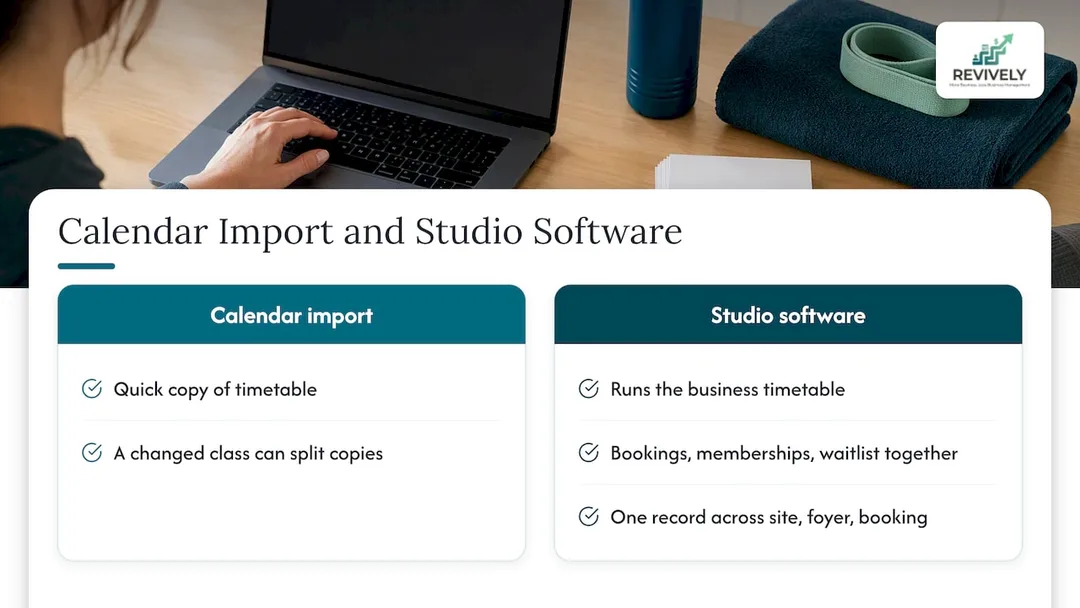
At Revively, we believe your schedule must live in one central place - intertwined with bookings, memberships, waitlists, and client profiles. This ensures the timetable on your website, your foyer display, and your client's booking confirmation are always drawing from the exact same, accurate source. That's why we've engineered class scheduling, multi-resource booking, automatic waitlist promotion, and customisable display boards into a single, unified cloud command centre.
"A calendar import is for a quick copy. Real studio software is for running your business with precision, profit, and peace of mind."
- The Revively Team*
Upgrade Your Operations: Move Your Timetable to Revively
If you've outgrown the limitations of file imports and patchwork systems, Revively handles everything a basic calendar can't - with an unwavering focus on Australian compliance.
With Revively, you get:
- Flawless GST & Tax Invoice Handling: Say goodbye to manual calculations. Our system natively handles 10% GST on casual classes, memberships, and multi-resource packages, automatically issuing legally compliant Australian Tax Invoices to your clients.
- 100% Legal Xero Integration for BAS Accuracy: Our automated two-way mapping of tax codes, revenue accounts, and liabilities ensures your quarterly Business Activity Statements (BAS) are always flawless and audit-proof. No more spreadsheet errors or last-minute accountant scrambles.
- Australian Data Residency & Privacy: Your clients' sensitive data, booking histories, and health intake forms are stored locally in Australia, fully complying with the Australian Privacy Principles (APPs). This builds trust and ensures peace of mind for both you and your clients.
- Recurring Class Timetables & Waitlists: Build complex schedules with ease, and let our system automatically manage waitlists, filling spots as they become available.
- Memberships & Class Packs: Seamlessly manage client memberships and class packs, with automated expiry tracking and renewal options.
- Online Booking Portal: Offer a sleek, intuitive booking experience under your own branding, accessible 24/7.
- Multi-Resource Scheduling: For spas and recovery centres, meticulously track rooms, saunas, treatment beds, and even cleaning buffers, ensuring smooth operations and optimal resource utilisation.
Our onboarding process can even start from your existing website timetable, saving you hours of manual re-entry.
Ready to see the difference? Explore our plans on the pricing page. Plans start at Solo, AUD $39 per month (AUD $390 per year). Growth is AUD $99 per month (AUD $990 per year), and Pro is AUD $199 per month (AUD $1990 per year). Rolling memberships add AUD $15 per month per 50 active members. There's a free trial available, so you can load your timetable and experience the seamless integration before you commit.
Frequently Asked Questions
Can you import a class schedule into Google Calendar?
Yes, but with caveats. On a computer, go to Settings, then Import & Export, select an .ics or .csv file, and choose your destination calendar. Be aware that guests and conference data are not imported, and crucially, the events do not update after the initial import. For a timetable that changes frequently, subscribing to an iCal URL is a better, though still limited, option.
How do I import a class schedule into Apple Calendar?
You'll need to subscribe to the website's .ics address. On an iPhone or iPad, open Calendar, tap Calendars, then Add Calendar, and finally Add Subscription Calendar. On a Mac, select File, then New Calendar Subscription. Remember, these subscriptions are view-only; all edits must be made at the original source.
How can I import an ICS file from a URL into Google Calendar?
On a computer, navigate to Settings, choose Add calendar, then select From URL, and paste the iCal address provided by the website. For this to work, the website must offer a public or private iCal feed. Treat a private feed address with care, as anyone possessing the link can view your studio's schedule.
Why did my website's schedule import with the wrong times?
This is a common issue, often caused by a wrong timezone specified in the source file, a malformed ICS file, or a CSV lacking the expected English headers. First, verify your studio's timezone is correctly set and matches the export. Open the file in a text editor or spreadsheet to check for errors or incorrect headers. Correct any issues, and then re-import a single week as a test. If you imported into a dedicated calendar, simply delete it and start afresh.
Sources
- Import events to Google Calendar, Google Calendar Help
- Sync your calendar with computer programs, Google Calendar Help
- Use iCloud calendar subscriptions, Apple Support
- Australian time zones, Tourism Australia