
Google Calendar Sync for Studios: Setup and Fixes
! Studio owner configuring calendar sync
Google Calendar sync lets your studio bookings and classes appear on the calendars your team already checks.
You've got a thriving studio, an incredible team, and a schedule that could rival an air traffic controller's. But when it comes to keeping your instructors, therapists, and trainers aligned, do you find yourself wrestling with calendars? One minute, a yoga teacher misses a pop-up class. The next, a massage therapist accidentally double-books because their personal calendar didn't reflect a last-minute client. Sound familiar?
That's where Google Calendar sync should be your best mate, bridging the gap between your comprehensive studio management software and the calendars your team lives by. When it's dialled in, it's a seamless whisper, showing every booking, class, and appointment on their phone, right where they need it. But when it's not, it's a nightmare of duplicates, ghost events, and operational chaos.
This isn't just about showing an event; it's about safeguarding your studio's efficiency, client experience, and, crucially for Australian owners, your compliance. This guide cuts through the noise, showing you how to set up Google Calendar sync properly for your wellness or fitness studio, what not to trust it with, and how to troubleshoot those frustrating moments when events go missing.
The Short Story: What You Absolutely Need to Know
- Sync for visibility, not management: Google Calendar is a window for your staff to see their schedule, not the engine where they create or change bookings. Your studio management software remains the undisputed source of truth.
- One source, one truth: Always create and modify bookings within your dedicated studio software. Let Google Calendar simply reflect these changes.
- Device first, software second: Most "not syncing" headaches stem from device settings like account sync being off, not from the calendar itself. Check your phone's settings before blaming the integration.
- Recurring classes are tricky: Daylight saving changes, single-class exceptions, and series edits often trip up sync. Always test with a weekly class first before a full rollout.
- History has limits: Google Calendar's mobile app only syncs past events for up to one year. For historical attendance or revenue data, rely on your studio software's robust reporting tools.
Table of Contents
- What Calendar Sync Actually Does for an Australian Studio
- One-Way or Two-Way Sync? The Critical Choice
- Setting Up Sync Without Creating a Digital Mess
- Why Recurring Classes and Time Zones Go Rogue
- When Google Calendar Decides Not to Play Ball: Troubleshooting Sync Issues
- The Revively View: Your Studio Software is the Engine, Google Calendar is the Window
- Seamless Sync Inside Revively
- Your Quick Pre-Launch Checklist
- FAQs
- Sources
- Recommended Reading
What Calendar Sync Actually Does for an Australian Studio
Let's be real. A shared Google Calendar is a decent digital diary for a solo operator. But your studio? That's a whole different beast. You're juggling yoga instructors across two rooms, Pilates teachers needing specific equipment, massage therapists who also need a treatment room and perhaps a sauna, plus clients booking, cancelling, and joining waitlists all week long.
Calendar sync acts as the critical bridge. Your purpose-built studio booking software holds the real schedule: capacity limits, resource allocation, class packs, memberships, and payment processing, all seamlessly integrating with GST calculations and Xero for accurate BAS reporting. Google Calendar simply receives a copy, so your team can glance at their day without logging into another system.
This streamlined approach delivers practical wins:
- Staff see their roster, effortlessly: Your 6 am yoga teacher can check tomorrow's schedule on their phone, right in their familiar Google Calendar app, without needing to open your studio's client management system.
- Your personal calendar stays honest: If you're teaching classes and running the show, your dental appointment and your 9 am Reformer class can coexist in a single, unified view, helping you prioritise.
- Fewer clashes, more harmony: Casual instructors, often working across multiple studios, can easily spot potential overlaps, improving reliability and reducing last-minute scramble.
What it absolutely does not do: manage capacity, promote clients off a waitlist, process payments, or track remaining class credits. Those crucial tasks are solely for your all-in-one studio management software. If you're still trying to run your multi-resource studio from a generic shared diary, our deep dive into why shared calendars aren't cutting it for Aussie studios will show you exactly where the cracks start to appear.
One-Way or Two-Way Sync? The Critical Choice
This isn't just a technical preference; it's a fundamental decision that impacts your operational flow and data integrity.
One-way sync (studio to Google) simply pushes bookings and classes out to a staff member's Google Calendar. All edits and changes must happen in your studio management software. It's wonderfully simple and predictable, removing the risk of someone accidentally dragging a class to the wrong day in Google and throwing your core booking system out of whack.
Two-way sync reads from Google Calendar as well. This means busy slots or personal appointments marked in a staff member's Google Calendar can block their availability in your booking system. This feature is particularly useful for casual instructors or independent practitioners who work across several locations or manage external commitments. The trade-off? The risk of conflicting edits increases, as two systems now have the potential to modify the same event.
Here's a quick comparison:
| Feature | One-Way Sync | Two-Way Sync |
|---|---|---|
| Best for | Studios with fixed class timetables | Practitioners/trainers with dynamic schedules and outside commitments |
| Risk of conflicting edits | Low | Higher |
| Blocks availability? | No (Google Calendar is read-only for staff) | Yes (personal calendar events can block studio availability) |
| Setup effort | Low, straightforward | Moderate, requires clear guidelines for staff to avoid errors |
Our practical recommendation: For structured classes, keep it one-way. For individual appointments where staff manage their own fluctuating availability, two-way sync can be a powerful tool. Whichever you choose, document the rule clearly so new staff understand exactly where to make changes, protecting your schedule's integrity.
Setting Up Sync Without Creating a Digital Mess
While specific screens may differ between platforms, the fundamental process for a clean setup remains consistent:
- Who's connecting? Each instructor or therapist should connect their own Google account. Avoid a single, shared login that everyone uses on their phone - it's a recipe for confusion and security headaches.
- Dedicated calendar: Create a separate Google Calendar specifically for "Studio Bookings" or "My Roster" instead of pushing events into a personal calendar. Staff can easily hide it when off-duty and, if issues arise, you can remove it cleanly without affecting their personal life.
- Start small, test thoroughly: Begin by syncing the schedule for just one person and a single weekly class. Scrutinise the start time, end time, room name (if applicable), and time zone on both their phone and desktop Google Calendar.
- Test changes: Once the initial sync is stable, test common scenarios: move the class, cancel it, and add a one-off session. Confirm each change reflects accurately across both systems.
- Roll out to the team: Only once you're confident in the setup and testing, invite the rest of your team to connect their calendars.
For a broader perspective on how to optimally connect your booking tools with your entire tech stack, this guide to booking system integration for small businesses offers valuable insights.
Why Recurring Classes and Time Zones Go Rogue
A weekly Reformer class isn't 52 individual events; it's a single event with a sophisticated recurrence rule. Google's own documentation details how recurring events are stored as a rule that expands into instances. Your studio software must accurately interpret and communicate these rules to Google Calendar, or you'll end up with missing classes, frustrating duplicates, or exceptions appearing on the wrong dates.
For Australian studios, this becomes particularly acute around Daylight Saving (DST). Before you fully trust any sync, test these three critical scenarios:
- Daylight Saving Transition: Remember, Melbourne, Sydney, Hobart, and Adelaide observe DST, while Brisbane and Perth do not. If your studio has locations across these zones (or even just staff travelling), meticulously check how classes are displayed across the clock changeover weekend.
- Single-Class Exceptions: If you cancel just one Thursday class in a weekly series (e.g., for a public holiday), confirm that all other classes in that series remain exactly as scheduled.
- Series-Wide Edits: Change the start time for an entire series of classes (e.g., from 6 pm to 6:30 pm) and verify that past classes retain their original time while future classes correctly update.
Understanding these complexities is why dedicated recurring class timetable software is so vital for maintaining a manageable and accurate schedule.
When Google Calendar Decides Not to Play Ball: Troubleshooting Sync Issues
Before you point the finger at your studio software, nine times out of ten, the culprit is the device itself. Google's own help page on fixing sync problems consistently prioritises device-level causes. Work through this list methodically:
- Check your internet connection: Obvious, but often overlooked. Confirm the phone is actually online, whether via Wi-Fi or mobile data.
- Update the Calendar app: Outdated versions can develop glitches and miss recent changes.
- Turn on account sync: Dive into your phone's account settings. Ensure that "sync" is enabled for the specific Google account that holds the studio calendar. Google offers clear guidance on how to sync Calendar with an Android phone or tablet.
- Confirm the calendar is visible: In the Google Calendar app, open Settings, select the relevant Google account, and ensure the studio calendar is ticked. This is a common fix for "why aren't other calendars showing up?"
- Clear the Calendar app's storage cache: This often resolves "phantom" events that appear but can't be edited or removed.
- Reconnect the integration: If, after all these steps, the studio software still seems out of sync, the integration link itself might be broken. Disconnect and then reconnect the integration within your studio software. This forces a full re-sync. Resist the urge to manually fix dozens of events; it's usually a waste of time.
This last point is crucial because of how Google's API works. Integrations typically rely on a sync token from an initial full sync to track incremental changes. If that token becomes invalid, the integration needs to restart with a fresh full sync. Manual edits in the interim only add to the clean-up.
Important Note for Historical Data: The Google Calendar app on a phone typically only syncs past events for up to one year, as per Google's sync troubleshooting guidance. If you need comprehensive historical data - last year's attendance, revenue trends, or client visit history - always use your studio software's reporting features, not a calendar app.
The Revively View: Your Studio Software is the Engine, Google Calendar is the Window
We built Revively as an Australian-made, unified cloud command centre for spas, yoga, Pilates, and dance studios. We've seen the pattern countless times: a studio starts with a Google Calendar, adds a spreadsheet for class packs, a separate payment tool, a waitlist managed via email, and then attempts to stitch it all together with sync.
The moment the Google Calendar becomes the place where people edit things, that's when the wheels fall off. A general-purpose calendar has no idea that a class is full, that a client only has two credits left, or that the sauna needs a 15-minute cleaning buffer after each session. It will happily let two people book the same room, leaving you with chaos to untangle.
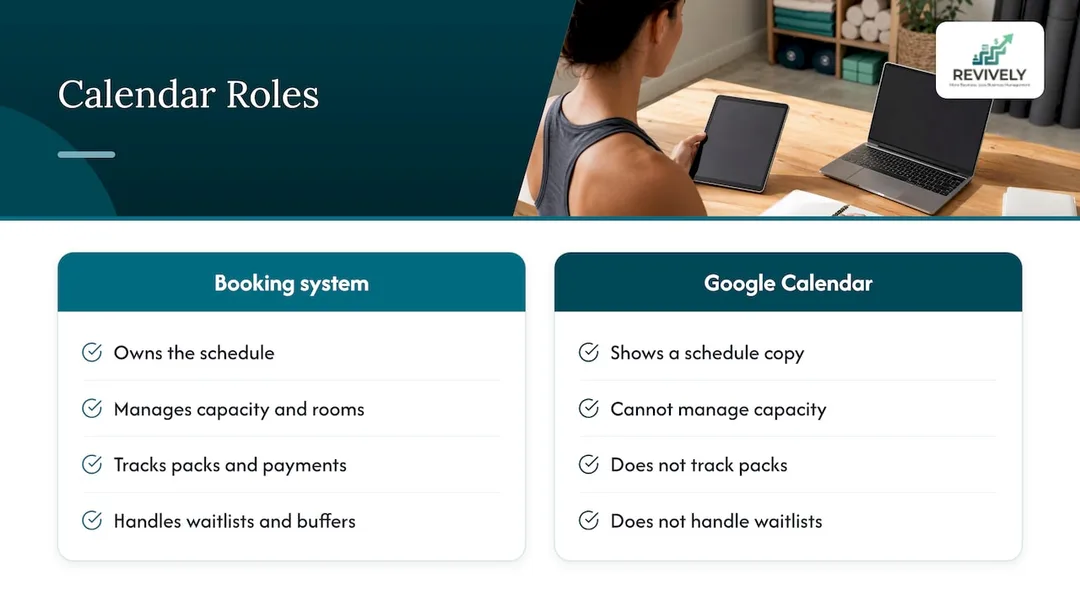
Our philosophy at Revively is simple, yet powerful: Your dedicated studio management system owns the schedule. This means classes, multi-resource bookings (rooms, equipment, staff), cleaning buffers, waitlists, memberships, class packs, and payments. It's also where all your client data, booking histories, and sensitive health intake forms are securely stored locally in Australia, in full compliance with the Australian Privacy Principles (APPs).
Google Calendar is merely the window your team looks through. Make every single change in one place - your studio software - and let everything else follow. When sync is treated this way, it rarely causes problems. And when it does, you can effortlessly reconnect without fear of losing crucial data because nothing important ever resided only in the calendar.
This approach also ensures flawless GST and tax invoice handling. Revively natively calculates 10% GST across casual classes, memberships, and multi-resource packages, automatically issuing legally compliant Australian Tax Invoices to your clients. Plus, our 100% legal Xero integration guarantees tax compliance for your quarterly Business Activity Statements (BAS). Automated two-way mapping of tax codes, revenue accounts, and liabilities removes manual spreadsheet errors, making your BAS audit-proof.
"True operational efficiency for Australian studios comes from empowering your team with accurate information, while safeguarding your data and compliance in one central, intelligent system. Google Calendar sync helps with the first part; your unified studio software handles the rest."
- Andreea (Revively Founder)*
If you're ready to ditch the scheduling circus for good, read our blueprint for a unified command centre.
Seamless Sync Inside Revively
Revively connects your meticulously organised studio schedule to both Google and Apple calendars, ensuring your instructors and therapists always see their roster where they already look. Discover the full capabilities on our Google and Apple Calendar sync page.
This critical sync is just one facet of Revively's unified command centre. It sits harmoniously alongside sophisticated recurring classes and waitlists, flexible memberships and class packs, integrated Stripe payments, and our essential Xero integration for rock-solid GST and BAS compliance. Our plans are designed to scale with your Australian studio, starting at just AUD $39 per month for Solo, with Growth at AUD $99 per month and Pro at AUD $199 per month. Enjoy savings with annual billing at AUD $390, AUD $990, and AUD $1990 respectively. Full details, features, and add-ons are available on our pricing page.
Your Quick Pre-Launch Checklist
Ready to roll out Google Calendar sync across your Australian studio? Run through this rapid checklist to ensure a smooth, headache-free launch:
- Individual Connections: Confirmed each staff member will connect their own Google account, not a shared one.
- Dedicated Calendar: You've created (or instructed staff to create) a separate, dedicated Google Calendar for studio events.
- Sync Direction: You've made a clear decision on one-way or two-way sync for both classes and individual appointments.
- Rigorous Testing: A weekly class, a cancelled class, and a moved class have all been tested and display correctly on both desktop and mobile.
- Daylight Saving Check: If you operate in NSW, Victoria, Tasmania, South Australia, or the ACT, you've specifically checked how events display across a daylight saving changeover.
- Source of Truth: Everyone on your team understands that all schedule changes are made exclusively in your studio software, never directly in Google Calendar.
- Ownership: A designated person knows how to troubleshoot and "own" the reconnection process if the sync ever drops.
If your studio also manages individual client appointments alongside classes, our post on multi-resource scheduling details how rooms, staff, and essential buffer times seamlessly fit together. For a wider understanding of intelligent timetable management, explore our class scheduling overview.
FAQs
How do I get my Google calendars to sync correctly with my studio software?
On your phone, ensure account sync is enabled for your Google account and that the relevant studio calendar is visible (ticked) in the Calendar app's settings. Within your studio software, navigate to the calendar or integrations settings, connect your Google account, and choose which Google Calendar will receive events. Crucially, test with a single class before connecting your entire team.
Why is my Google Calendar not syncing properly with my studio schedule?
Most often, the issue lies with the device: a poor internet connection, an outdated app version, the Google account sync being switched off, or a full cache. If the problem is specific to your studio events, the most efficient fix is to disconnect and then reconnect the integration within your studio software to force a complete re-sync. Avoid making manual, one-by-one corrections.
Why are other calendars not showing up in my Google Calendar app?
The calendar is likely hidden. Open the Google Calendar app's settings, select the account, and ensure the desired calendar is ticked. Also, if the calendar was shared by someone else, you may need to explicitly subscribe to it before it appears.
Should I edit classes in Google Calendar or in my studio software?
Always edit in your dedicated studio software. Your system understands critical operational data like capacity, waitlists, client class packs, and payments - information Google Calendar simply doesn't possess. Treat Google Calendar as a read-only view for your staff, unless you have specifically configured and need two-way sync for individual practitioner appointments.
Sources
- Fix sync problems with the Google Calendar app
- Sync Calendar with a phone or tablet, Android
- Synchronize resources efficiently, Google Calendar API
- Calendars and events, Google Calendar API
- Subscribe to someone else's calendar