
Invoices, walk-in sales, and refunds
Revively owns your invoices, refunds, and gift cards - they live alongside the booking, not in a separate spreadsheet. Card payments settle to your own connected Stripe account. Bank deposits and PayID go straight into your business bank account.
Invoice from a booking
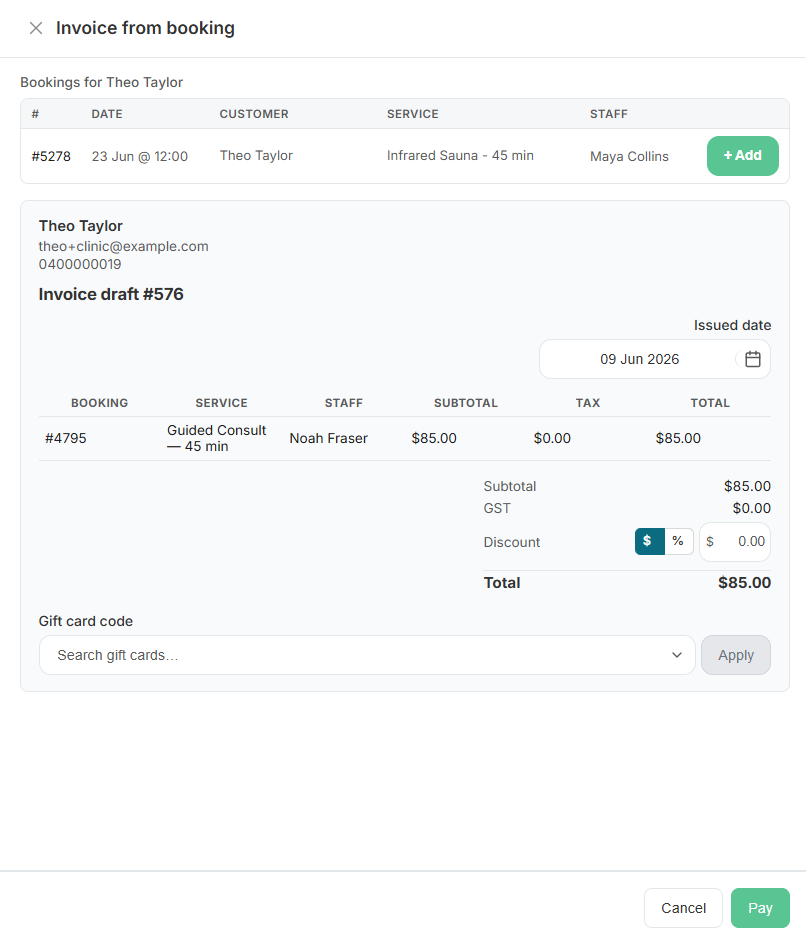
Generate an invoice straight from a booking once the visit is done. Line items carry the service, price, and tax treatment, with GST defaults included. From there you can send a pay-now link, take payment on a terminal, request a bank deposit or PayID, or leave it open for the customer to pay in the portal.
Ring up a walk-in sale
Not every sale starts with an appointment. Someone buys a protein tub, a gift card, or a class pack on their way past the desk.
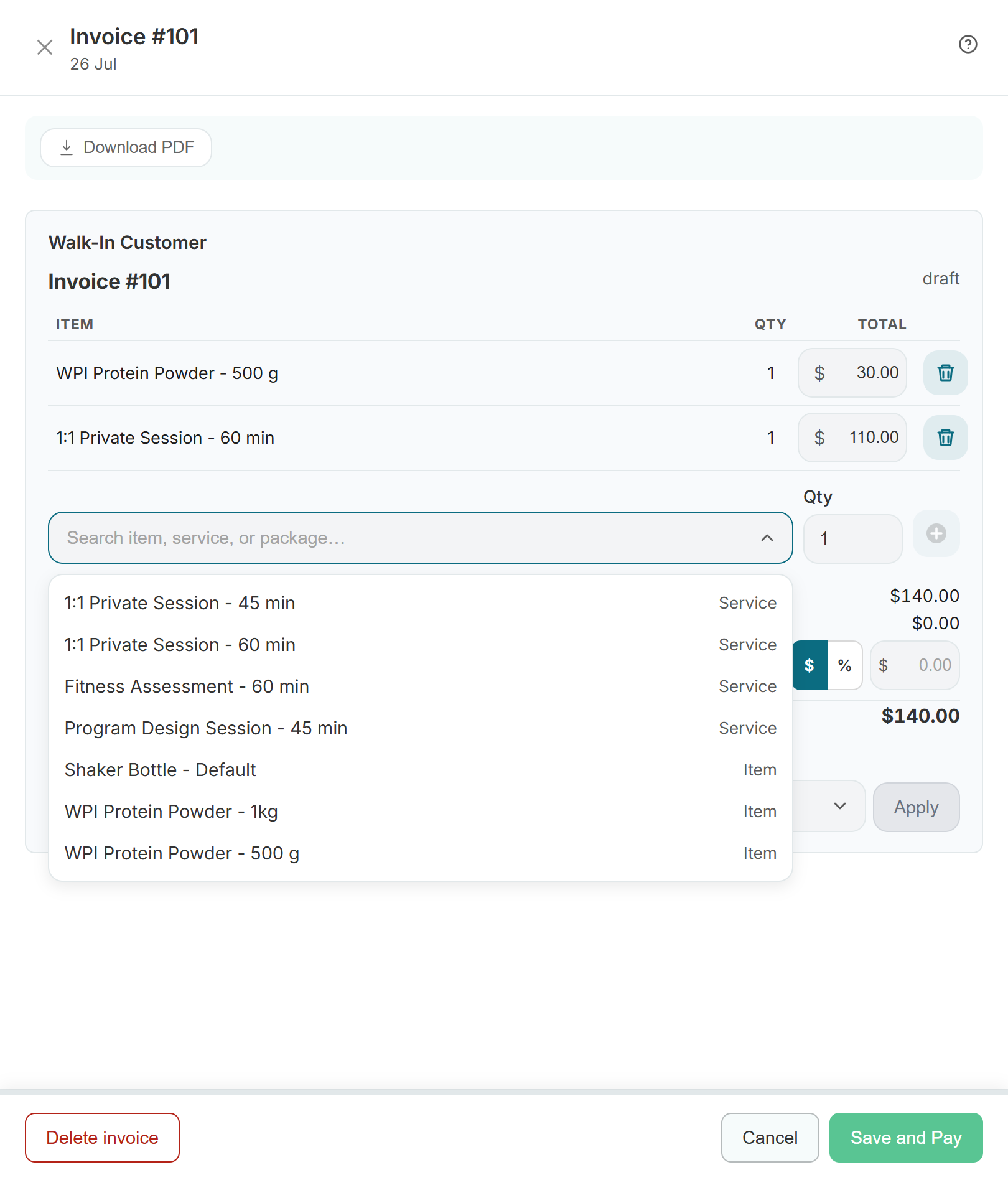
- Go to Invoices → Create sale.
- Pick the customer, or leave Walk-In Customer selected when there is no profile to attach.
- In Search item, service, or package, type a few letters. Services, retail items, and packages all appear in one list, each labelled with its type.
- Choose the variation - the 500g tub, the 60-minute session - and set the quantity.
- Apply a discount in dollars or percent if you need to.
- Save and Pay, then take payment however suits.
Everything you sell reports under its own category, so retail, services, and packages stay separate in reports instead of collapsing into one number.
Take payment
- Pay-now link - emailed, paid by card on your Stripe account.
- In person - card via a Stripe terminal or SmartPay, or cash recorded against the invoice.
- Bank deposit / PayID - the customer pays into your business account with a unique reference. The invoice stays unpaid until staff confirm the deposit, or Xero marks it paid. See payment methods.
- Gift card - apply a code at checkout and the balance comes off the total.
- Package - when a customer has sessions remaining, the booking flow redeems them instead of charging again.
Refunds
Issue a full or partial refund against the original invoice. The refund is tracked on the same record, so your revenue reporting and daily summary stay accurate rather than needing a manual adjustment.
Deposits and no-shows follow the same path: refund a deposit when you decide to, or raise a no-show fee invoice from the booking. See reduce no-shows with deposits.
Payment plans (deposits and instalments) attach to catalogue items and scale the first invoice to the amount due now. Later instalments raise their own invoices. See payment policies and payment plans.
Accounting
On Growth and Pro you can connect Xero to map tax rates and chart of accounts. Daily summaries post card, cash, and EFTPOS in one invoice per day. Bank deposit and PayID invoices are pushed individually so they can be matched to the bank statement. The daily summary explains exactly how receipts, deferred revenue, gift cards, and packages are treated - worth reading once with your bookkeeper.