
Sell retail items online and at the desk
Most studios already sell something across the counter - protein and shakers at a gym, retail haircare in a salon, oils and candles in a spa, uniforms at a dance school. Items gives each of those products a proper record, a page in your online shop, and a one-search route onto any invoice.
Items live under Catalogue → Items on every plan.
Step 1 - Create the item
- Open Catalogue → Items and choose New item.
- Name it the way a customer would say it - "WPI Protein Powder", not "SKU-4471".
- Pick a Category. Categories come from Tags & Categories and group the shop for customers (Proteins, Haircare, Uniforms).
- Add a Variation for each size or format you sell, with its own price. A protein powder might have 1kg at $65.00 and 500g at $30.00.
- Add Tags if you segment products for reporting or campaigns.
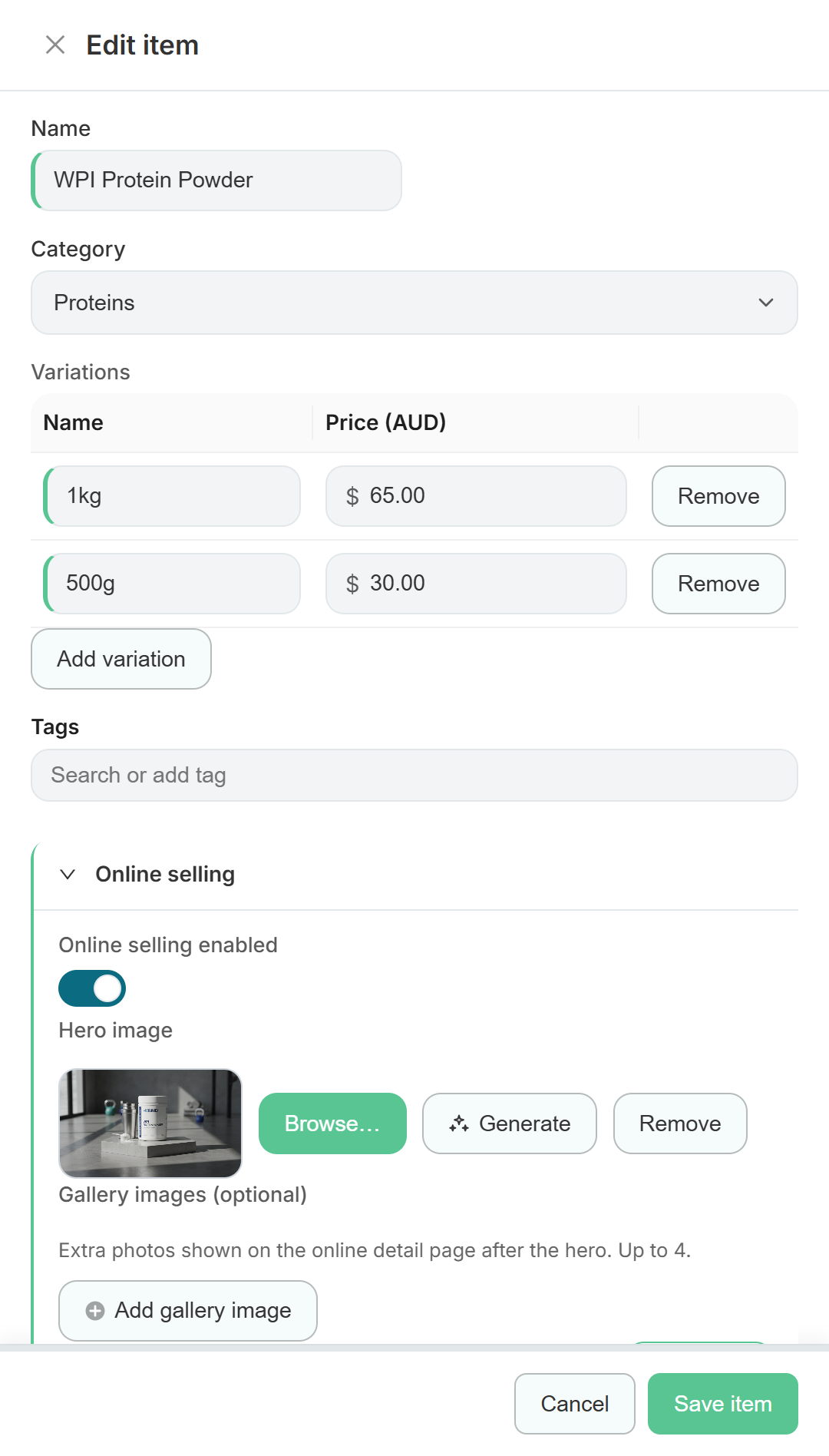
Every item needs at least one variation - that is what carries the price. If a product only comes one way, a single "Default" variation is fine.
Step 2 - Put it in your online shop
Expand Online selling on the same drawer.
- Turn Online selling enabled on. The item appears under the Shop tab of your storefront.
- Add a Hero image. Browse your account image library, upload your own, or choose Generate to create one - see AI descriptions and images.
- Add up to four Gallery images for extra angles or in-use shots.
- Write the Online selling details - the description customers read on the product page. The AI helper drafts one for you if you would rather edit than write.
- Save.
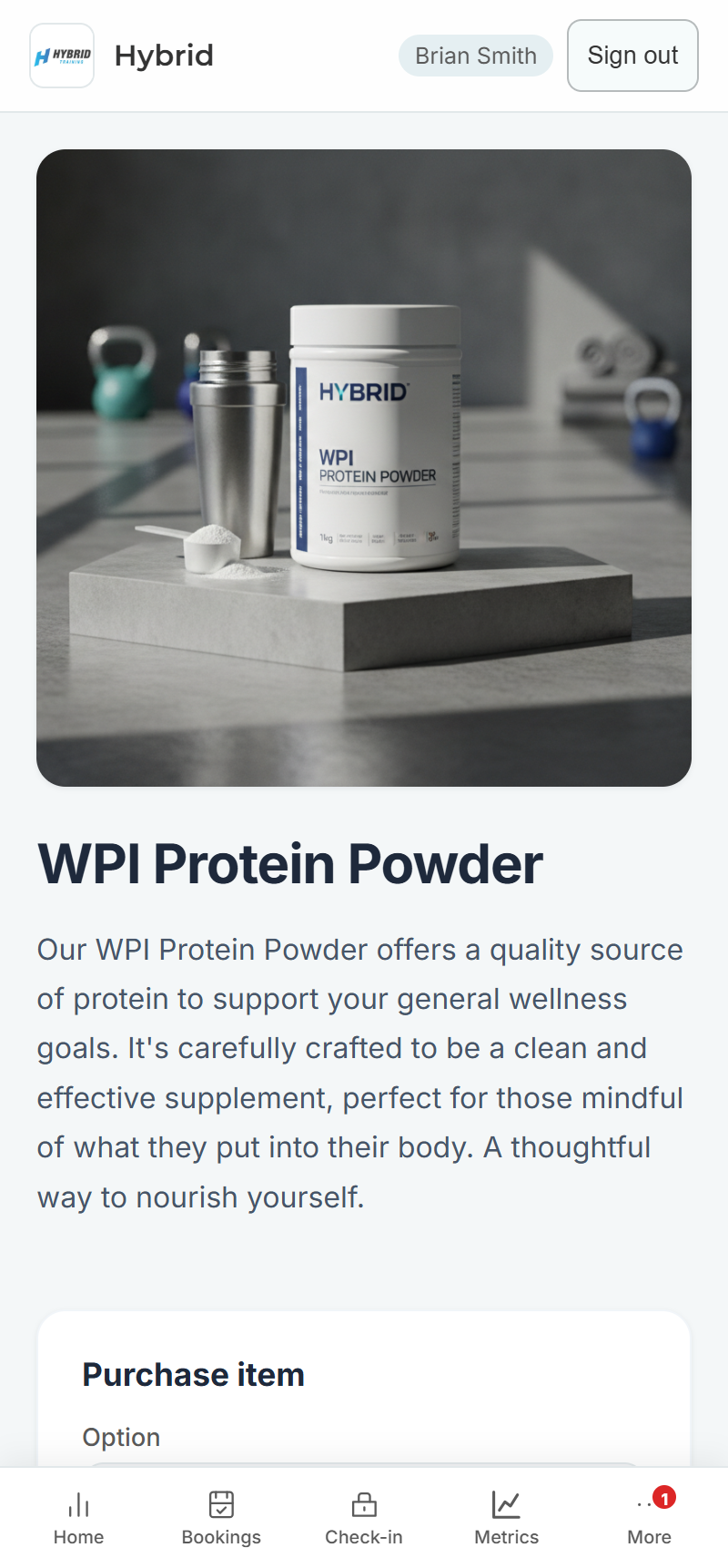
Customers pick a variation, pay through Stripe on your own connected account, and the sale lands in Revively like any other invoice.
Step 3 - Share a single product
The Online selling section also gives you a direct link and QR code for that one product. Use it for a shelf tag, a story post, or a reply to "where do I buy that?" - it opens the product page on your subdomain, not a marketplace.
Step 4 - Sell it at the front desk
Retail usually happens on the way out, mid-conversation. It should not need a second system.
- Open Invoices → Create sale, or open the invoice you already started from a booking.
- Choose the customer, or leave it as Walk-In Customer for someone without a profile.
- In Search item, service, or package, start typing. Services, items, and packages all come back in the same list, labelled so you can tell them apart.
- Pick the variation, set the quantity, and add any discount.
- Save and Pay - take payment on a terminal, by card, or however you normally do.
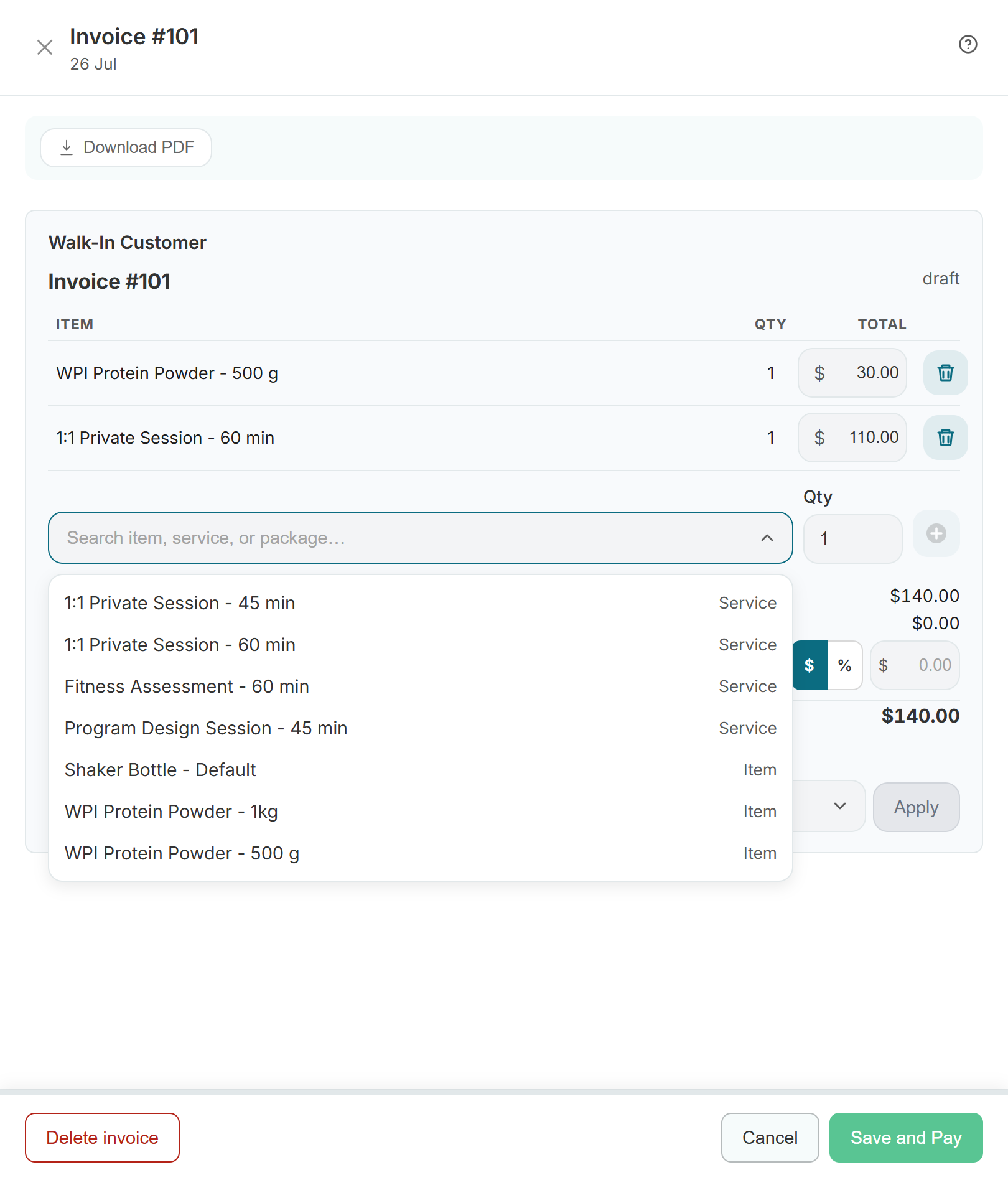
Because the item is a real catalogue record, the sale reports correctly in revenue by category rather than landing in a "misc" bucket.
Stock levels
On the Pro plan you can track quantity on hand through the inventory ledger, and paid sales reduce stock automatically. See Track stock with inventory adjustments. On other plans items sell without being counted, so keep stock counts wherever you keep them today.
What Items does not do yet
- No low-stock alerts. Revively will not warn you when a line is running down - build a stocktake into your routine.
- No supplier or purchase orders. Items describe what you sell, not what you buy.
- No shipping. Online purchases are collect-in-store by default - say so in the description if it is not obvious.
Ideas by business type
| Business | Worth listing |
|---|---|
| Gym & PT | Protein by size, shakers, straps, singlets |
| Beauty salon | Retail haircare, styling tools, gift sets |
| Spa & recovery | Massage oils, salts, candles, robes |
| Wellness clinic | Practitioner-recommended supplements and topicals |
| Dance & martial arts | Leotards, shoes, gis, replacement belts by size |
| Yoga & pilates | Grip socks, straps, mats, studio totes |
| Music school | Exam books by grade, reeds, strings, rosin |