
Meet Emma
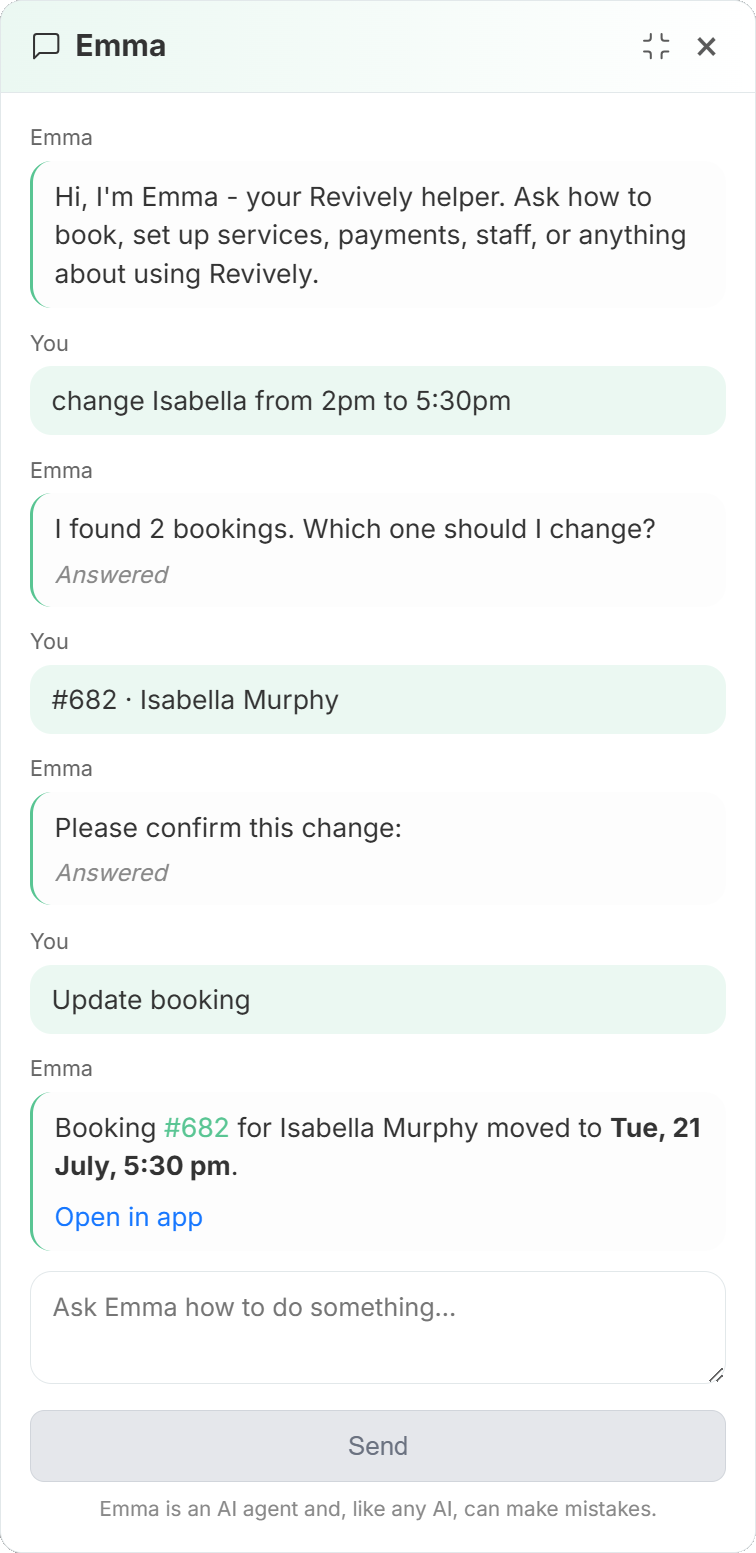
Emma is Revively's staff AI helper. She lives in the dashboard chat so managers and front-desk staff can run common work in plain English - without hunting menus while a client waits at the counter.
Emma is for signed-in staff only. Customers do not chat with her on the portal.
See also the Emma feature overview.
What can Emma do?
Ask her in chat: "What can you do?" - she will summarise her actions and smart questions.
In short, Emma can:
- Run guided actions - book, cancel, move, no-show, tags, notes, waitlist, waiver SMS, Xero sync, and more (she confirms before changing data).
- Answer live ops questions - bookings today, revenue, availability, events, who needs a progress review.
- Explain the product - short help answers with links to full articles.
Details and example prompts are below.
Why she saves management time
Most desk work is not hard - it is slow: open calendar, find the booking, open the client, change the time, send the update, then check the waitlist. Emma collapses that path into one conversation so you stay on the floor.
Illustrative examples (your times will vary by workspace and how much you already have typed):
| Job | Typical click path | With Emma |
|---|---|---|
| Reschedule one booking | Find client → open booking → pick slot → save (~1–3 minutes) | "Move Harper's 2pm to 3:30" → confirm (~15–30 seconds) |
| Morning ops glance | Calendar + reports + customer list | "How many bookings today?" / "What's today's revenue?" in one chat |
| Intake chase | Open profile → check forms → copy link → SMS | "Send Jordan the waiver link" |
| Waitlist bump | Open class → waitlist → promote | "Promote the next person on tonight's waitlist" |
Over a busy week, shaving a minute or two off each change adds up to real manager hours you can spend on clients, coaches, and the room - not the admin UI.
How to use Emma
- Sign in to the staff dashboard.
- Open Emma from the chat button (bottom of the screen).
- Ask the way you would ask a colleague.
- When she proposes a change, read the summary and confirm before she finishes.
- Follow up in the same thread ("the second one", "yes", "try again") when she needs a pick.
Conversation history is kept for a short window so you can continue a task without starting over.
High-level actions
Emma can run guided actions - she collects missing details, then applies the change after you confirm when needed.
Bookings
- Create a booking
- Find someone's bookings
- Reschedule or reassign (time / staff)
- Cancel a booking
- Mark a no-show
- Silence reminders on a booking
- Find open / free slots for a service
Customers and CRM
- Find a customer by name
- Create a new customer
- Apply tags
- Log a clinical or private note
- Set marketing email / SMS consent
- Clear a customer block
- Deduct a class-pack token
- Assign preferred staff (single customer or bulk)
- Write or update a progress review (notes and goals - confirm before save)
Classes and sessions
- Promote someone from a waitlist
- Change session capacity
- Reassign the host / trainer for a session
Compliance
- Audit intake / waiver status
- Send a compliance (waiver / intake) SMS link
Accounting
- Check Xero sync status for an invoice
- Force a Xero re-sync when something is stuck
Skills and levels
Where your workspace uses Revively Levels:
- Set or clear a skill score ("Grade Sam's freestyle to Proficient")
- Promote a customer to a level
Progress reviews
When Performance metrics is enabled:
- Ask who needs a progress review or who had recent PRs
- Assign preferred staff to one or more customers
- Write or update progress review notes and goals from bullet points (confirm before saving)
Smart questions (ops answers)
Emma can also answer read-only ops questions without opening three screens, for example:
- How many customers do we have?
- How many bookings today / on a date?
- Who is booked today?
- What is today's revenue summary?
- Who needs a progress review?
- Who had recent PRs?
- Who hasn't logged metrics lately?
- What is available on a given date?
- Which events are coming up, and enrollment counts?
Ask in natural language - exact wording does not need to match a menu label.
Product help answers
If you ask how to do something in Revively, Emma searches the help library and replies with short guidance plus links to full articles.
That covers the whole product, not just the busy screens:
- Setup - identity and branding, business hours and holidays, services and resources, importing from another system
- Customers - managing your customer list, notes, tags and categories
- Staff - roles and permissions, capabilities, working hours and blocked time
- Money - payment methods, invoices and refunds, tax rates, discount codes, stock
- Integrations - Stripe, Square, PayPal, Xero, Zoom
- Your account - your subscription and plan
- Compliance and admin - documents, the support inbox, training partners
That is different from an action: help explains; actions change data after you confirm.
Tips for good prompts
- Name the person and the when: "Book Sam for Signature Massage tomorrow at 2pm."
- Prefer verbs: book, cancel, move, find, promote, send, tag.
- After a list, point: "the second one", booking
#623, or "yes". - One job per message when you are in a rush - she can chain follow-ups.
Limits and good judgement
- Emma is an AI helper and can make mistakes - read confirmations before she changes the schedule or a client record.
- She is built for common staff workflows, not every screen in Revively.
- Deep setup - branding, plan billing, complex refunds - is still done on the relevant settings and finance pages. Emma can explain the steps and give you the path; you finish the change there.
- She is not a customer-facing chatbot.
Example prompts to try
Desk rush
- "Find open massage slots this Saturday afternoon."
- "Cancel Jordan's booking tomorrow morning."
- "Mark Harper's 9am as no-show."
Manager morning
- "How many bookings do we have today?"
- "What's today's revenue?"
- "Which customers need a check-in?"
- "Assign Jordan to Sam as preferred staff"
- "Write a progress review for Mia: squat depth improved, focus on hip mobility"
Client care
- "Find customer Priya Sharma."
- "Add a private note for Alex: prefers quieter room."
- "Send Mia the intake form by SMS."
- "Opt Sam out of marketing SMS."
Classes
- "Promote the next waitlist person for tonight's reformer."
- "Swap the host on Thursday's 6pm class to Casey."
Help
- "How do I turn on online booking?"
- "Where do I connect Stripe?"
- "How do payment plans work?"
- "How do I set up an instalment plan?"
- "How do I add a discount code?"
- "Where do I change my plan?"
- "How do I set a staff member's working hours?"
- "How do I print a check-in QR code?"